POWER
CoolMode, on your terms
Toggle CoolMode from the dashboard, the tray menu, or a keyboard shortcut you choose.
One tap to switchYelly puts CoolMode, processor power limits, and useful hardware readings in one quiet desktop companion.
Windows · Lightweight · Runs from the system tray
 Yelly / Dashboard
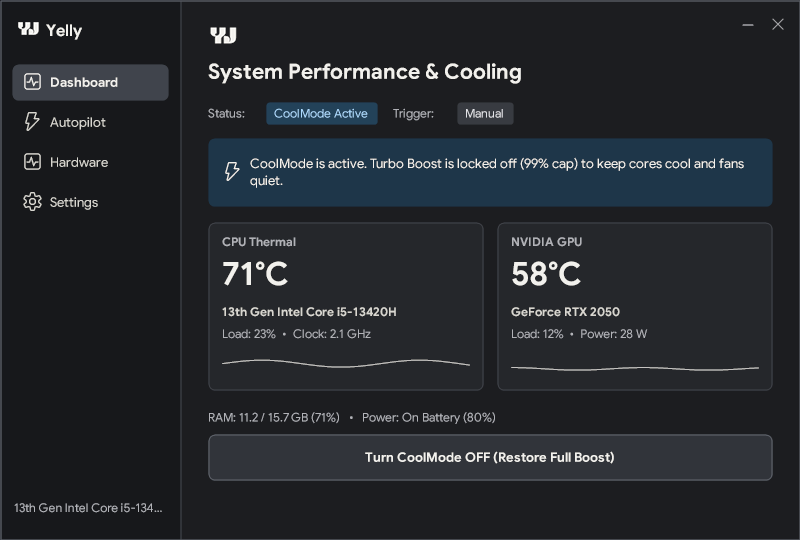
Useful at a glance
Yelly keeps the everyday power and monitoring tools close, with a dark interface that feels at home on Windows.
POWER
Toggle CoolMode from the dashboard, the tray menu, or a keyboard shortcut you choose.
One tap to switchTELEMETRY
See CPU and GPU temperatures, processor activity, memory, power, and available SSD health readings.
Refreshes liveSHORTCUT
Set a global shortcut to switch CoolMode without leaving the app you’re in.
Set your own comboHardware monitor
Check the components that matter without opening a heavyweight monitoring suite. Readings depend on what your hardware and Windows expose.
Yelly / Hardware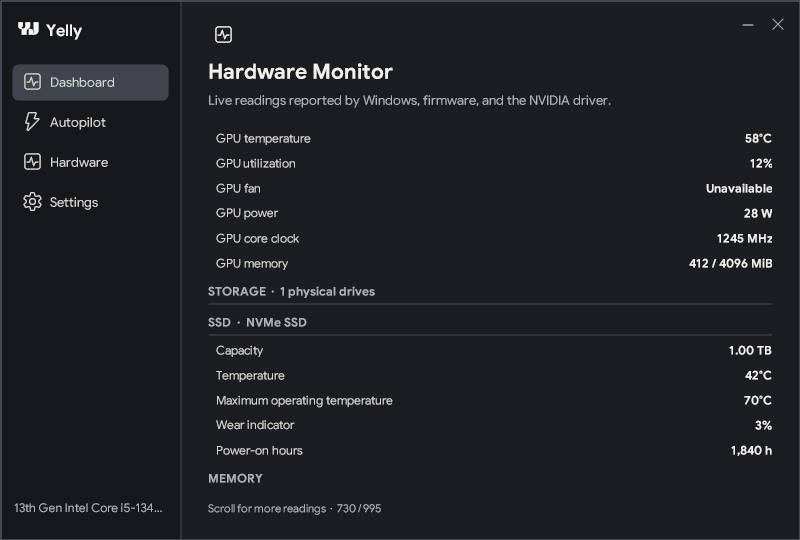
Personal settings
Choose the maximum processor state Yelly applies in CoolMode, then assign a key combination that fits your workflow.
Autopilot
Set rules for battery power, selected apps, or CPU temperature. Yelly checks those rules automatically; you can still switch modes manually anytime.
Explore YellyChoose which rules to use in Autopilot settings.
Ready when you are
Download Yelly for Windows and keep the controls close.